Getting Started - Launch an Email Campaign
Ready to captivate your audience? Launching an email campaign is one of the best ways to engage your contacts and drive real results. Whether you're promoting your services or simply staying top of mind, a well-crafted email can significantly boost your conversions. Let's dive in and get your first campaign off the ground!
TABLE OF CONTENTS
Start From An Email Template
Every great email campaign starts with a stunning template. Think of your template as the blueprint for success—it's the foundation upon which you'll build compelling messages again and again. Ready to get started?
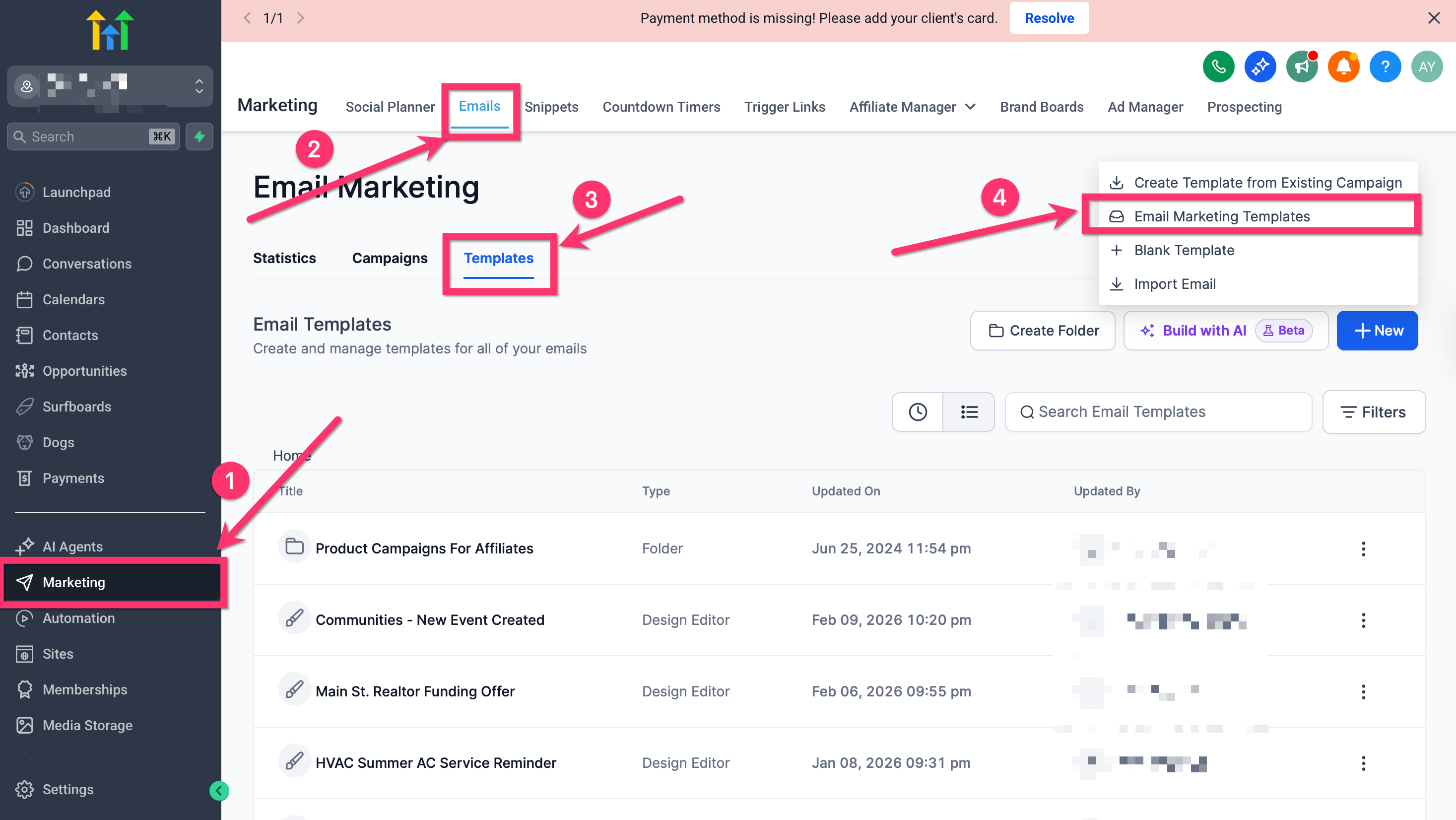
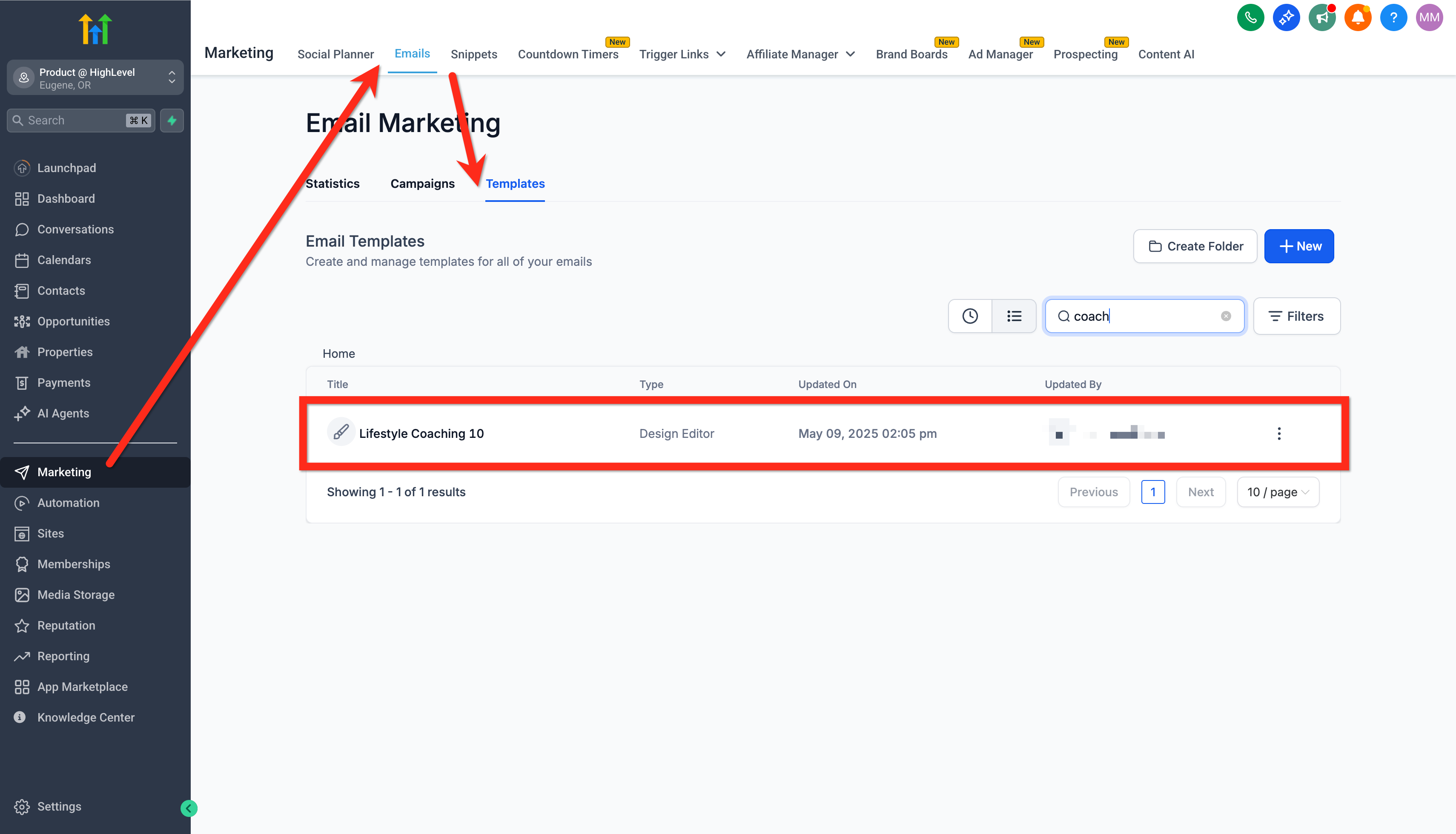
Navigate to Marketing > Emails.
Click the Templates Tab.
Click New.
Select Email Marketing Templates.
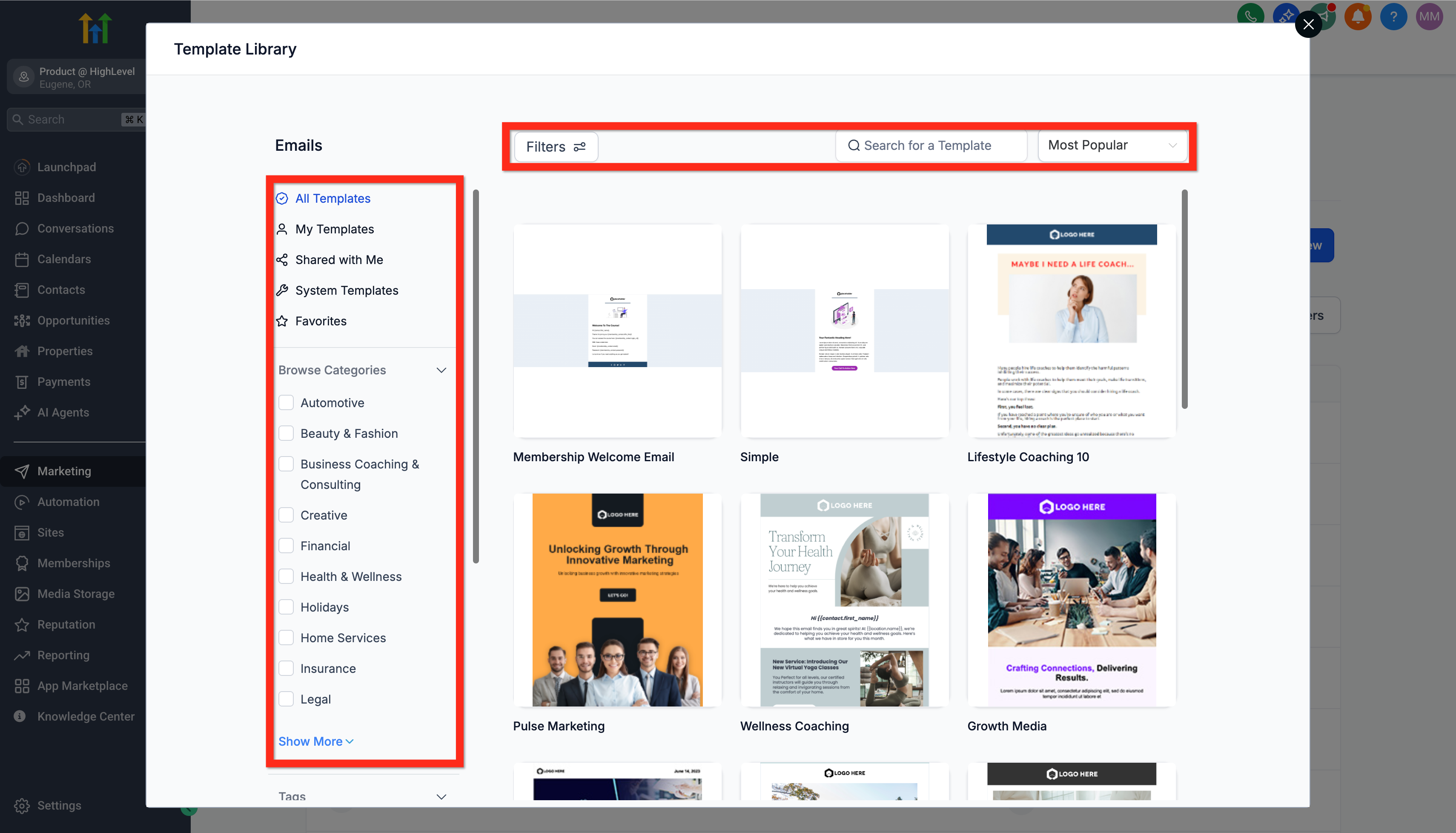
Browse, search, and filter available templates to find the perfect fit.
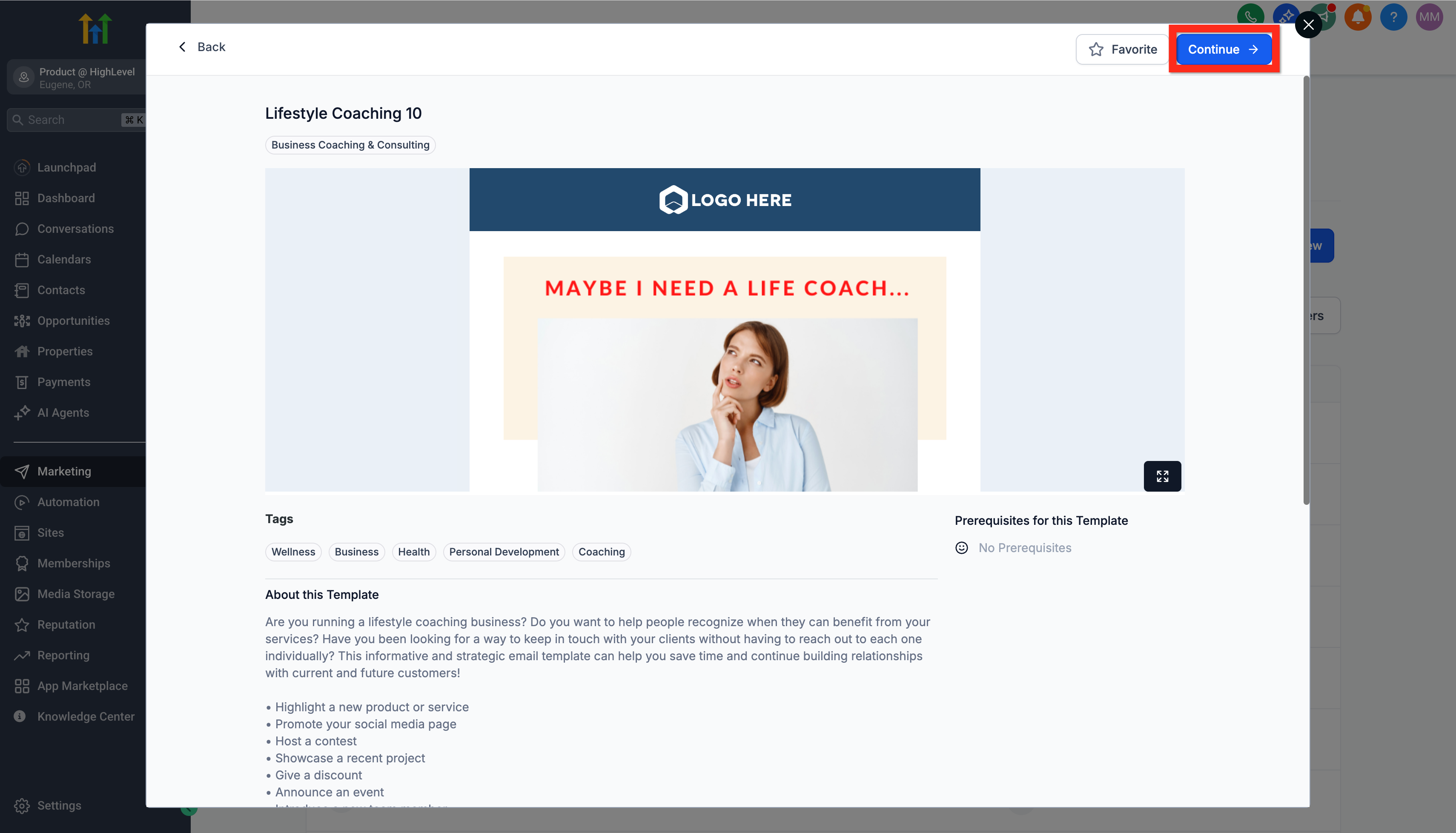
Preview your desired template to see how it resonates.
Click Continue to open it in the Email Editor.
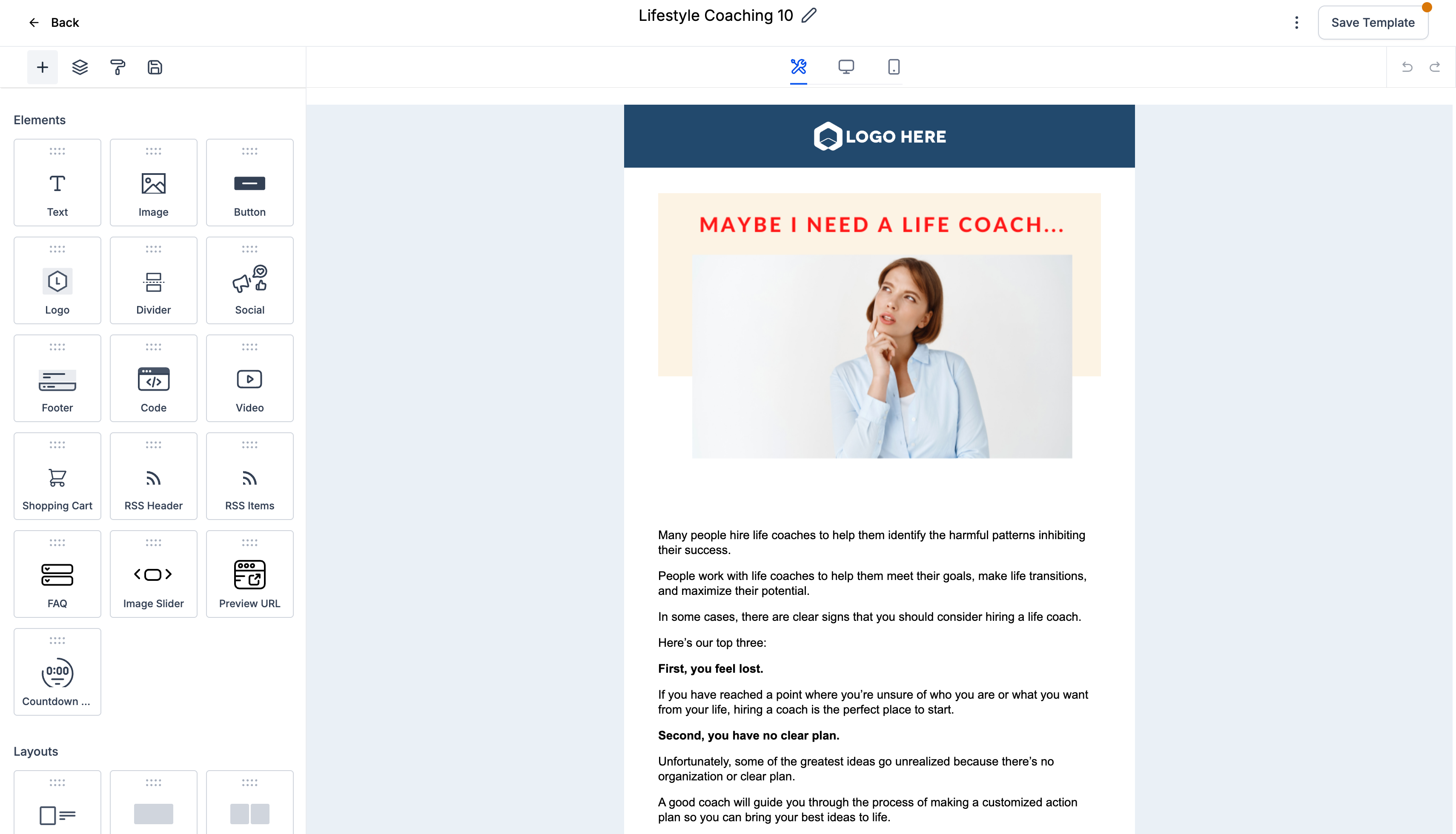
This will create the template and open it in the Builder.
Tip: The Template Library search includes suggestions, recent searches, color-based discovery, and highlighted keyword matches to help you find relevant email templates faster.Learn More:
Next, you can start customizing your template to make it uniquely yours!
Edit Email Template
Editing your template is where the magic happens. This is your chance to truly make the template your own by adding your personal touch, brand voice, and compelling visuals. Let's polish that template to perfection!
Navigate to Marketing > Emails > Templates.
Open your chosen template in the Email Editor
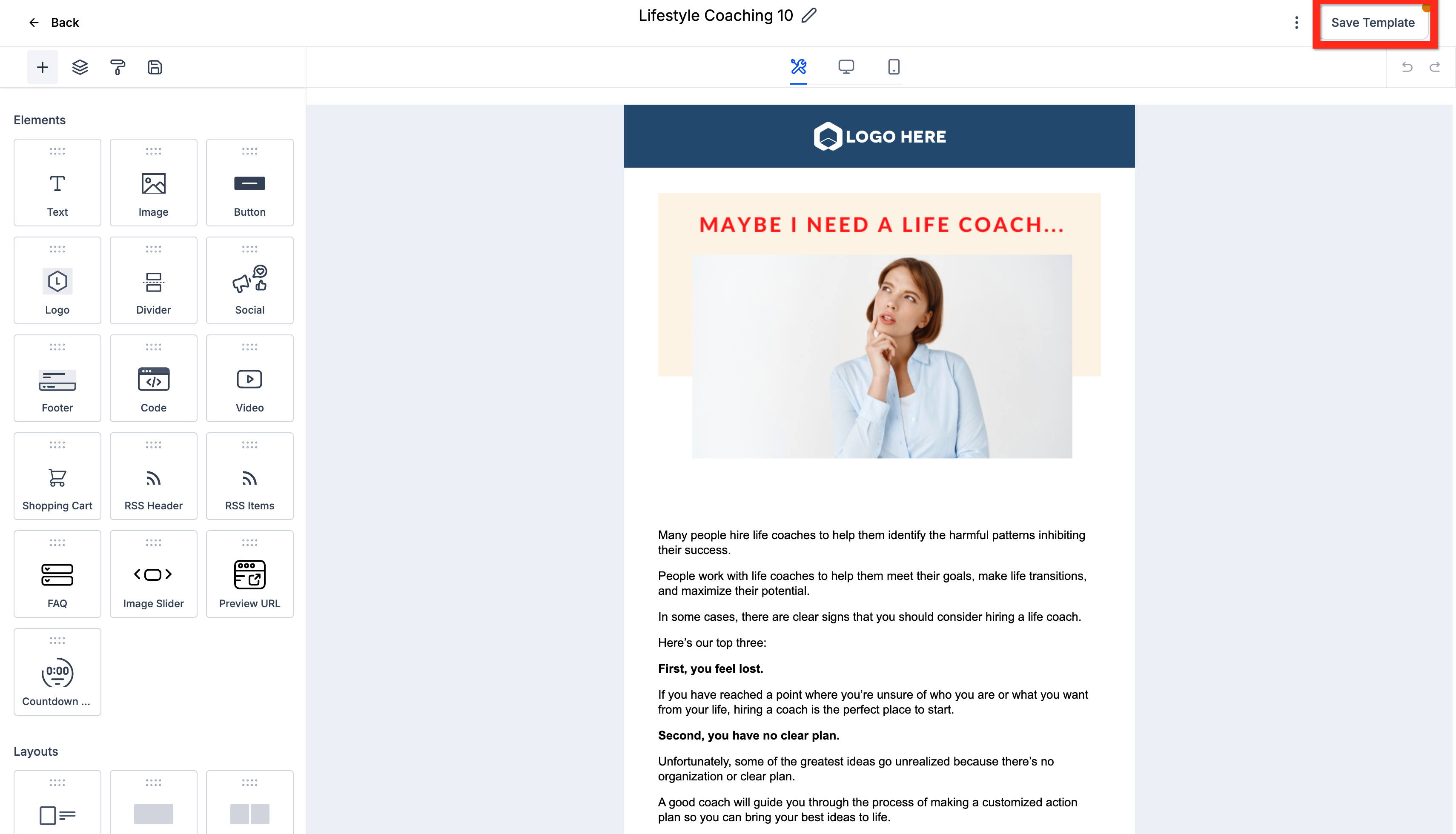
Adjust elements (text, images, layout) until it feels just right.
Click Save Template to keep your changes.
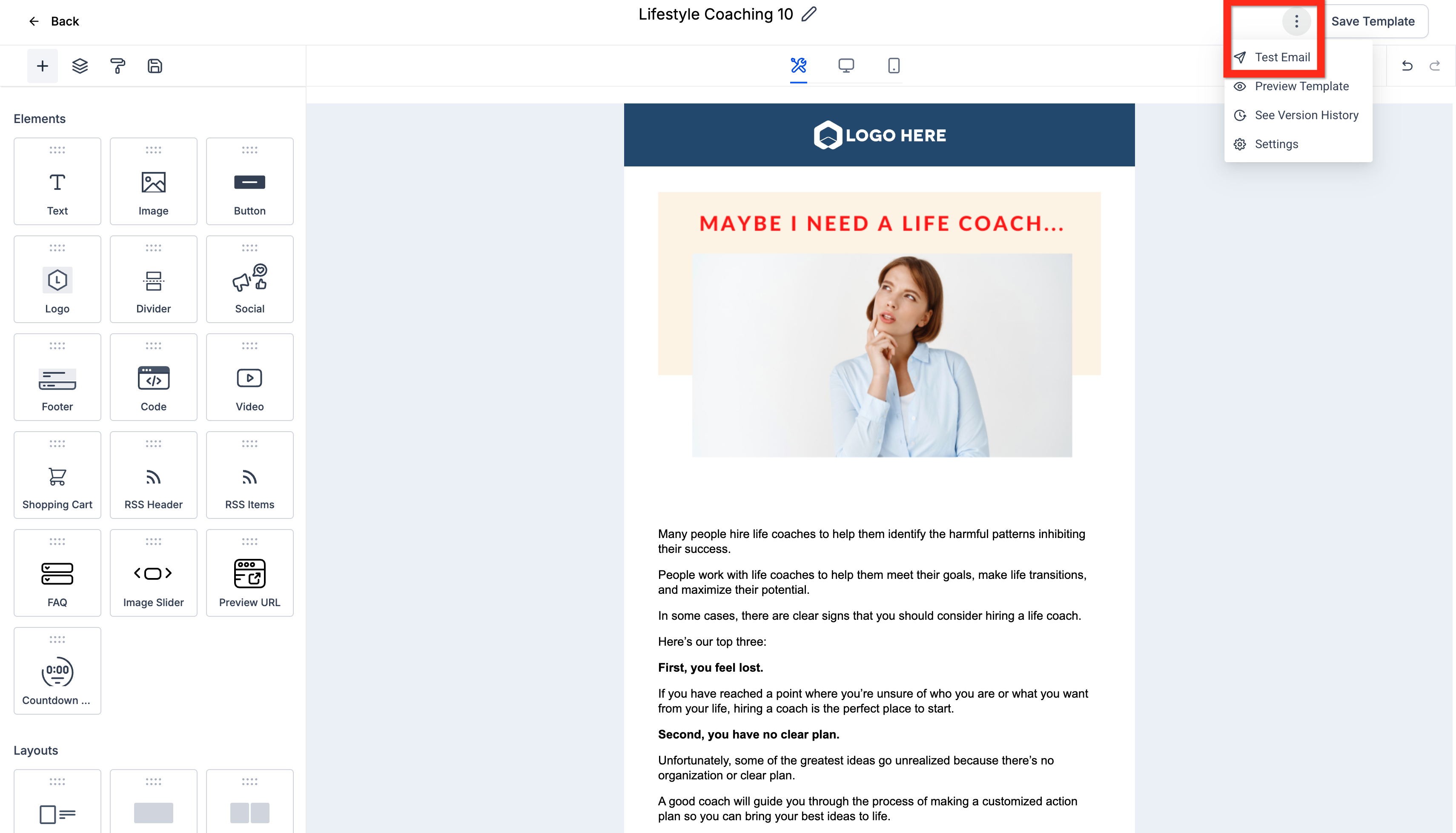
For peace of mind, click the 3-dot action menu > Test Email
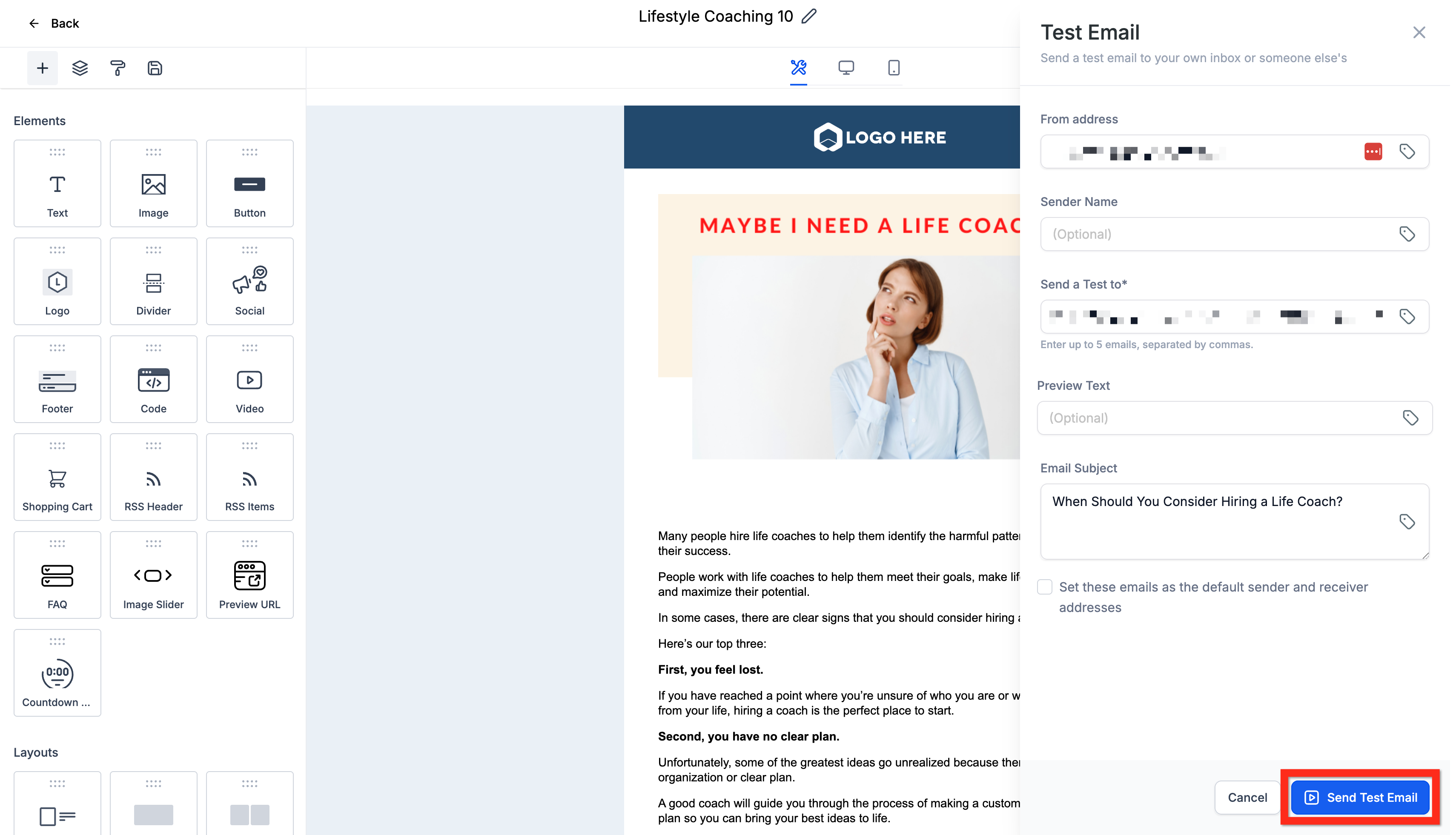
Fill in details such as sender information and recipients.
Click Send Test Email.
Once you're happy, click Back to return to your Email Campaign Dashboard.
Your template looks fantastic! Next, why not create an email campaign to reach your audience?
Dock the Edit Panel & Work with Email AI
Create faster by placing the edit panel on the right and working side by side with Email AI.
Steps
Open your campaign/template in the Email Builder.
Enable Email AI (if needed for assisted drafting).
Use the panel switch in the editor to move the panel Right (or back to Left).
Continue editing, preview, and publish as usual.